KDE/Plasma5 Lock Screen Missing Password Prompt
Posted on Dec 03, 2021 by kingbeowulf
Every so often the KDE lock screen is missing the password prompt. The mouse cursor moves around, wakes up the display, with no way to get back to the desktop. Normally I'd just force a log out or SHIFT-CTRL-BACKSPACE, but I had a bunch of stuff running that I didn't want to unceremoniously kill. Of course, searching for another answer these days provides all sorts of nonsensical systemd stuff. One post mentioned loginctl, part of elogind. I then remembered that Slackware switched to elogind. I remoted in from another desktop - running Xfce which does not seem to suffer from this lock screen issue.
1$ loginctl
2SESSION  UID USER    SEAT  TTY
3      1 1000 beowulf seat0 tty1
4      2 1000 beowulf       pts/4
5
62 sessions listed.
Now, we just pick the session to unlock.
1$ loginctl unlock-session 1
ISSUE RESOLVED - back to the KDE desktop as normal.
Even after 25 years, I always enjoy learning new tricks for Linux, and for Slackware in particular.
- Related Topics:
- slackware
- elogind
- lock screen
Slackware 15.0 Release Candidate 1
Posted on Aug 17, 2021 by kingbeowulf
After a week if nail biting silence, the first release candidate dropped for Slackware 15. From the changelog announcement:
1...GCC was bumped to version 11.2.0 (because we just can't send this out 2 versions behind),
2and everything was verified to build properly or fixed up so that it did. I don't see any benefit
3to another public mass rebuild, so we're not going to do one. Anyway, without further ado, here
4is Slackware 15.0 release candidate one. Consider most things frozen and the focus now to be
5any remaining blocker bugs. We'll more than likely take that next Plasma bugfix release, but it's
6soon time to get off this treadmill. Enjoy! :-)
As always, details are here: Slackware ChangeLogs as well as a the ever amusing commentary over on https://www.linuxquestions.org/questions/slackware-14/slackware-15-0-rc1-4175699211/
Teracube 2e smartphone unboxing and first impressions
Posted on Jul 13, 2021 by kingbeowulf
There are now some options for those that want to avoid the excessive expense and electronic waste of smartphones. Most manufacturers do want the consumer to constantly upgrade and thus make it difficult to perform any sort of repair of battery replacement. Two new companies want to change that cycle by providing sustainable, repairable smartphones with a longer life cycle that the typical 2 years. The goal is an easier to repair device that is also ecologically friendly.
Two relative newcomers to the scene are Teracube and Fairphone. Fairphone has been around for awhile and aims to make a sustainable device that is also modular. Thus, the end user can not only repair but upgrade various modules. Unfortunately, the latest Fairphone 3 and 3+ (€399 and €439, respectively) are not available in the USA. Teracube is a more recent player on the smartphone scene also aiming for sustainability and ease of repair. Since the Teracube is available in the USA, I decided to try it out and replace my 3 year old Nokia 7.1.
Unboxing the Teracube 2e
The device arrived via US Postal Service in a plain bubble wrap envelope. Inside was indeed what looked like a recycled cardboard box. These pictures were taken with the Nokia 7.1 and then batch reduced in size with the imagemagick command
mogrify -format jpg -thumbnail 75% *.jpg
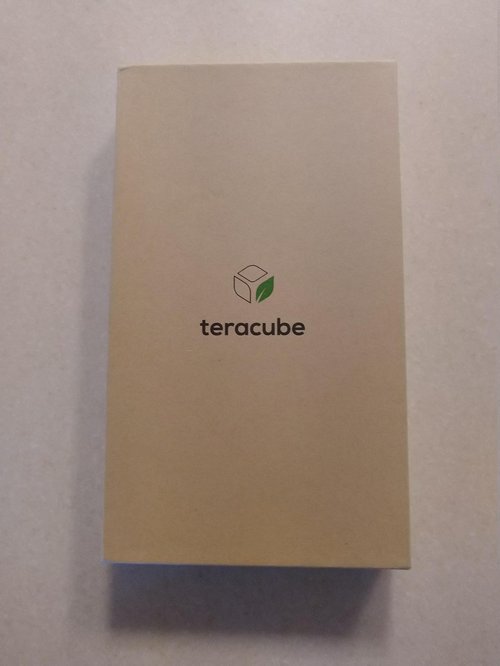

You are welcome.
Opening this no frills container reveals the phone nestled in its minimalist glory.
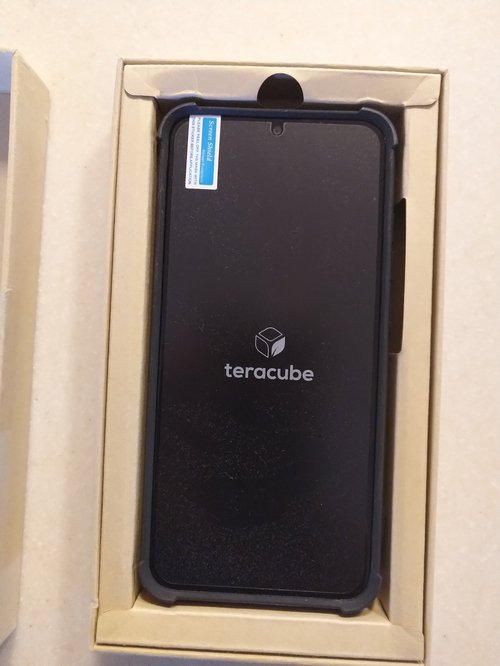
The case and screen protector were already installed. When I pulled off the protective sheet, I had to be careful to not also pull off the screen protector. The left top corner did pop up a bit introducing a few bubble that were easily squished out. After lifting the phone out of the box, we see more minimalism.
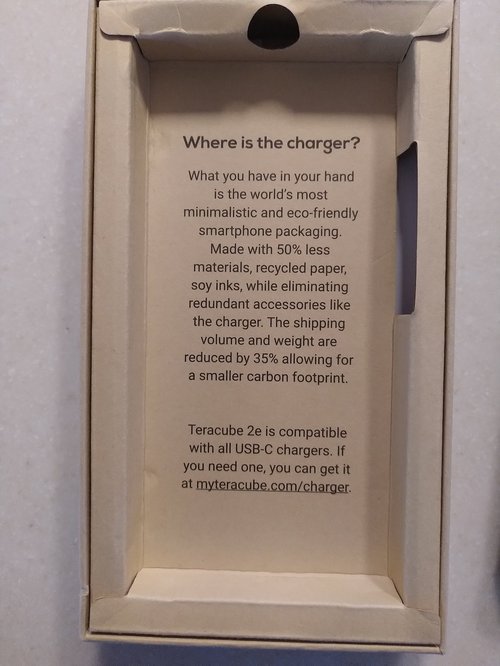
Sure, I've got plenty of chargers and cables. Who doesn't?
Flipping the phone over, you see the removable 'instruction sheet' describing the basic button layout.
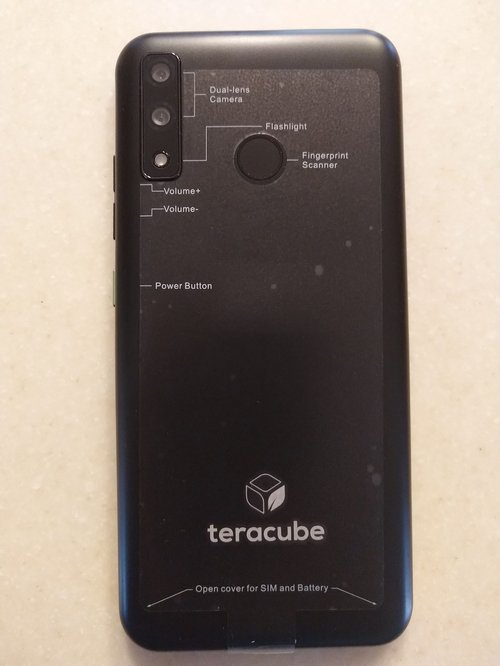
Now, I do wonder what two sheets of plastic are made of, and if they are sustainable or biodegradable. Sometimes I do miss working in a Chemistry laboratory when these sorts or questions come up.
Following the instructions, the back does pop off (not too easily) to reveal the replaceable battery.
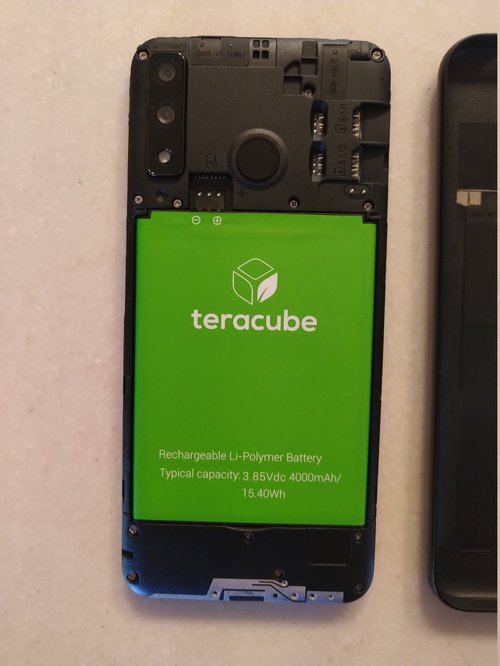
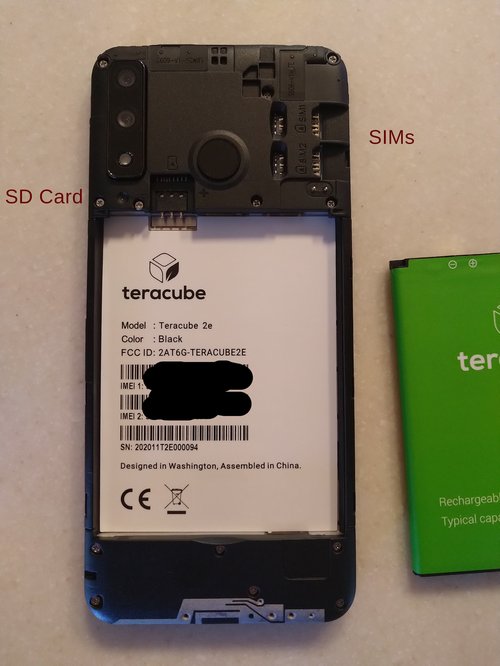
Dual Sims are readily accessed (no stupid tray). To install the SD card, I did have to remove the battery. I do like this layout a better than the Nokia 7.1 which was also dual SIM. However, the tray would hold either the SD card or the second SIM, not both.
Power on was quick. The phone came with a 60% charge. After backing up the Nokia, transferring the SD card and SIM, setting up and restoring settings and apps took about 30 min via wifi.
Specifications
Operating System Android 10.0
Processor
- MediaTek Helio A25
- Octa-core processor 1.8Ghz
Memory
- 4GB RAM
- 64GB storage
Screen
- 6.1" HD+ IPS Display
- 720X1560
Rear Camera
- 13+8MP
Front Camera
- 8MP
Battery
- 4000mAh replaceable lithium-ion battery
Security
- PIN
- pattern
- fingerprint
- face unlock
Connectivity
- WiFi
- Bluetooth 5.0
- FM
- NFC
Network
- Dual SIM
- 4G (LTE)
Ports
- Headphone Jack
- USB-C port
- Separate Micro SD slot
Design
- 155.2mm x 73.3mm x 10.1mm
- 190g
- Black
Other Features
Carrier Unlocked
Stock Android
4-Year warranty
Express replacement
Stock Android with 3 years of updates
Accidental repair $59
Impressions
So far, this is a pretty nice smartphone, especially for $199. Call quality is good. The speakerphone has good volume but does sound a thin and tinny. Sony wired earbuds sounded good, as did the LG bluetooth headset. Pairing took just seconds. Wifi connectivity works (5 Ghz 802.11ac, 300-433 Mbps around the house, Openwrt Linksys WRT1900ACS). Accessing online information (news, videos) worked just fine so far. Video playback was fine; don't expect 4K UHD! The light, however, is a bit far from the main camera lens. As a result, the heart rate monitor and some trouble getting my pulse rate. Either that or I have really tiny hands.
No games tested. For that I have a Ryzen 9 3900X with Radeon RX 5700 XT.
What I especially liked was the headphone jack. Plug in and FM RADIO! Yes, the FM chip is unlocked. This may seem silly to you younger folk, but in an emergency (fire, earthquake, civil unrest, etc) you are far more likely to get FM radio reception than a cellular signal. Also, with polycarbonate construction and case, the phone sticks to my fingers. I can hold onto it. Too many expensive phones are all glass and slippery.
I didn't test NFC or that face ID stuff. The fingerprint reader works well enough.
For the price, this is a pretty decent phone. Decent construction and components, good size and weight. Add the 4 year warranty and 3 years of Android updates, you avoid the mad cash dash planned obsolescence (assuming Teracube doesn't tank) cycle.
Granted, it's not water proof or sealed against dust. So I guess I'll leave it on the office desk when I go to the bathroom or do the laundry...
Alternative Operating Systems
Given the standard hardware used for the Teracube, and for those against anything Google, there a few non-google choices. So far these are in beta but do look promising. The there is the e Foundation /e/ OS, a de-googled android build, and looks to be almost ready. Another option is LineageOS. Although the Teracube 2e is not listed on the LineageOS wiki, there are a few test/beta builds and instructions available.
https://doc.e.foundation/devices/2e
https://community.myteracube.com/t/advanced-users-10-0-beta-lineageos-17-1-unofficial-2e/2281
- Related Topics:
- sustainable
- android
- smartphone
- teracube
New IRC home for Linuxgalaxy and Slackware
Posted on Jul 07, 2021 by kingbeowulf
By now most have heard about the Freenode IRC implosion so I won't rehash that here. Suffice it to say, that most of our favorite F/OSS IRC channels are now on Libera.chat, with some now on OFTC or similar.
For LinuxGalaxy and Slackware, you can find us on
irc.libera.chat:6697
(https://libera.chat/guides/connect)
New Channels:
#linuxgalaxy
##slackware
#slackbuilds
#slackdocs
Slackware Linux 15.0 Beta released
Posted on Apr 16, 2021 by kingbeowulf
Slackware 15.0 Beta (current branch) released earlier this week, and it's shaping up quite well. From the ChangeLog:
1Mon Apr 12 20:07:12 UTC 2021
2I'm going to go ahead and call this a beta even though there's still no fix
3for the illegal instruction issue with 32-bit mariadb. But there should be
4soon (thanks ponce!) No build regressions noted with the official gcc-10.3
5release. Please report any new (or old) issues on the LQ Slackware forum.
6Enjoy! :-)
I've run Slackware64-current now for over a year, since the upgrade to kernel 5.4.x and then 5.10.x. I made the switch from 14.2 (stable) so I could take advantage of a new XFX Radeon RX 5700 XT THICC Ultra III GPU via amdgpu and the new Ryzen 7 3800X and Ryzen 9 3900X with Gigabyte X570 motherboards. The performance and stability has been exceptional, and getting better. There is a lot to like about Slackware, so give it a try. There is a live version that tracks Current here:
https://docs.slackware.com/slackware:liveslak
This new Slackware release will make a fabulous long term support release. Remember: ALL Slackware stable releases are LTS!
Setting up Valheim Dedicated Server on Slackware64
Posted on Apr 11, 2021 by kingbeowulf
This guide will assist in setting up a Valheim Dedicated Server (VHDS) on Slackware64-current. This procedure should also work on Slackware6-14.2, although additional prerequisites may be required. The process is similar to setting up a Half-Life Dedicated Server (HLDS) with one important simplification. We will be using LinuxGSM: the Linux Game Server Manager.
LinuxGSM is a command line tools written in BASH to greatly simplify and streamline the installation of Linux dedicated game servers. The instructions are easy and straightforward.
Prerequisites
---------------
- Slackware64 multilib
- steamCMD (32-bit only)
- LinuxGSM (bash) [NOTE: LinuxGSM will install steamCMD.]
The VHDS is x86_64 while SteamCMD is 32-bit. Thus, we need to convert Slackware64 to Slackware64-multilib. Instructions for doing so are described in "Adding Multilib Capability to Slackware on x86_64 Architecture". If you've set up the Steam Client on Slackware64, then you are familiar with this process.
As the 'root' user, you first create a dedicated user account under which SteamCMD ann VHDS will run.
1# groupadd steam
2# useradd -g steam -m -d /home/steam -c "Steam server account" -s /bin/bash steam
Then set a password for the new “steam” account:
1# passwd steam
For convenience, symlink 'ip' and 'ethtool' so that the steam user can access these tools, since we are not going to use 'sudo', and to squash the resulting errors and warnings. For some reason the LinuxGSM scripts to not use the full file path which would make this step necessary. I might submit a bug/feature request about this.
1# ln -s /sbin/ip /bin/ip
2# ln -s /usr/sbin/ethtool /usr/bin/ethtool
Valheim server uses anonymous login. Other servers will prompt for a Steam login. You can create a new Steam user dedicated to running servers. Recommended. Do not use your current Steam Client login. You can place the Steam login credentials into $HOME/lgsm/config-lgsm/<servername>/secrets-{common|<servername>}.cfg, but note that these credentials are stored in plain text.
1## SteamCMD Login
2steamuser="username"
3steampass="password"
Now we are ready to Install LinuxGSM. This will install SteamCMD automatically as needed. Login as our 'steam' user, and download LinuxGSM, and install:
1$ cd $HOME
2$ wget -O linuxgsm.sh https://linuxgsm.sh
3$ chmod +x linuxgsm.sh
You can get a list of all available servers with:
1$ ./linuxgsm.sh list
Now to install out Valheim server:
1$ ./linuxgsm.sh vhserver
2$ ./vhserver install
Now you have the following in your 'steam' user home directory, as well as a '.steam' for the SteamCMD files:
 1$ tree -d -L 3
 2.
 3├── lgsm
 4│   ├── backup
 5│   │   └── script
 6│   ├── config-default
 7│   │   └── config-lgsm
 8│   ├── config-lgsm
 9│   │   └── vhserver
10│   ├── data
11│   ├── functions
12│   ├── lock
13│   └── tmp
14├── log
15│   ├── console
16│   ├── script
17│   └── server -> /home/steam/serverfiles/Saved/Logs
18└── serverfiles
19    ├── Saved
20    │   └── Logs
21    ├── linux64
22    ├── steamapps
23    │   ├── downloading
24    │   ├── shadercache
25    │   └── temp
26    └── valheim_server_Data
27        ├── Managed
28        ├── MonoBleedingEdge
29        ├── Plugins
30        └── Resources
Next, You'll want to adjust the default configuration to set up the server parameters. '~/lgsm/config-default/config-lgsm/' contains the default and example configurations. Leave the _default.cfg alone as they will be overwritten on updates. Each lower layer overrides the previous one. This is so that you can set up multiple independent servers.
In the '~/lgsm/config/lgsm/vhserver' directory, copy _default.cfg to common.cfg and customize as needed. Since we are running just one Valheim server, we can stuff everyting into common.cfg. Whan runnign multiple servers, the common parameters are here, and parameters specific to each server is on secrets-<server name>.cfg and <server name>.cfg. Set up the server parameters (customize as needed):
1#### Game Server Settings ####
2
3## Predefined Parameters | https://docs.linuxgsm.com/configuration/start-parameters
4servername="<Server name>"
5serverpassword="<server password>"
6port="2456"
7gameworld="${selfname}"
8public="1"
9ip=<server local LAN IP>
The rest you can leave at the defaults, or customize as needed.
I recommend setting the PC running the server to a fixed IP on your home network. Port=2456 (UDP) is the default; change as needed. Next, open your router's firewall or use port forwarding for port range 2456-2458 (UDP). Note that the port specified in the configuration is the start of a port triplet. When connecting via the Steam client, the Valheim in game community browser can be a bit finicky. You can explicitly set the server IP via the Steam Client View -> Servers -> Favorites -> Add a Server and enter the <server IP>:<port+1>
NOTE: This is the external, or direct, IP from your internet service provider. This will not necessarily be the IP in config.cfg if you are behind a router/cable modem etc.
[Update: The in-game server browser has improved a bit, but can still take some time to find your server. There is now a button for direct IP entry.]
Now run the server:
1$ ./vhserver start
Just running 'vhserver' will provide a list of commands. View server information with:
1$ ./vhserver details
This will provide your external IP. A number of server commands are available (see References). Valheim specific information is located: ~/serverfiles/Valheim Dedicated Server Manual.pdf
AMD X570 Motherboards and Creative Labs Soundblaster Audio Cards
Posted on Apr 10, 2021 by kingbeowulf
Recently I ran into an issue where a Creative Sound Blaster Audigy RX 7.1 PCI-e card would not work on an ASUS Prime X570-P motherboard. This is an AMD Ryzen CPU motherboard with the X570 chipset with MS Windows 10 (gasp). We tried every slot to no avail. Searching the UEFI BIOS proved fruitless. Bad audio card? A quick online search should a number of issue getting the Audigy R and Z series cards operational in both Win10 and Linux on newer AMD motherboards. Rather than disable secure boot etc so that I could boot my trusty Slackware Live USB stick, I moved the card to the the Gigabyte X570 Aorus running Slackware64. The card worked! So what was the difference?
(n.b.: Win10 and it's secure boot was installed on this PC over my objections)
My Gigabyte X570 is using a Creative Sound Blaster Audigy Z that worked out-of-the-box. A bit more searching suggested that there my be a motherboard firmware issue. I had recently upgraded the Gigabyte board's firmware recently for various Rysen CPU and DDR4 memory updates. A quick download from the Asus support site and the BIOS was updated from 2019 vintage to 2021. After the update, Win10 detected the Audigy RX, and we could install the drivers.
Note 1:
Gigabyte provides a dedicated USB port that makes firmware updates easy. Just download onto a USB stick and reboot into the UEFI Setup. Asus, however, provides a Windows executable archive and a file renaming utility before the UEFI setup can read the firmware from a USB stick. Idiocy.
Note 2:
I though this was a quirk of the Gigabyte motherboards, but the Asus did this as well. When you upgrade the new X570 firmware (a) won't or load saved settings form an older version, and (b) erases the EFI boot table with the result that the motherboard reports no boot devices found. Make sure you have USB or DVD boot media available to repair! I'm not sure about the secure boot keys (I don't use them). I recommend leaving secure boot off to be able to boot diagnostic OS other than Win10.
Hide Tooltips in Xfce 4.16
Posted on Mar 29, 2021 by kingbeowulf
A discussion came up some time ago in the Linuxquestions Slackware forum: Xfce for Slackware Users
It seems there are a few who dislike the icon tool tip pop-ups in the Xfce panel. Back when, there was a settings that would toggle this functionality. In Xfce 4.16 there isn't...or is there?
If you enable desktop compositing (Settings -> Window Manager Tweaks -> Compositor), you can set the tool tip to transparent, effectively making it disappear. Simply edit the CSS in $HOME/.config/gtk-3.0/gtk.css to set the tool tip opacity to zero and restart Xfce.
1@import 'colors.css';
2tooltip {
3    opacity: 0;
4}
Of course, this means that any program using this GTK3 CSS style will also have the tooltips become invisible.
Mars Helicoptor Ingenuity Runs on Linux
Posted on Feb 20, 2021 by kingbeowulf
NASA's Perseverance rover landed last week carrying with it the Ingenuity helicoptor as a technology demonstation. The purpose is to see if it is possible to fly on Mars.

(Artist concept; NASA/JPL-Caltech)
The helicoptor is built with off the shelf parts, open source software and runs on a Linux OS. Details here:
Mars Helicopter
To infinity and beyond: Linux and open-source goes to Mars
- Related Topics:
View hardware sensors remotely with GkrellM: The GNU Krell Monitors
Posted on Jan 06, 2021 by kingbeowulf
Sometimes a perfectly good good system tool goes overlooked until a particular need arises, as in the case of GkrellM. GKrellM is a GTK program to display a single process stack of system monitors. Usually I have it running on a second monitor to keep tabs on temperatures, fan speeds and various other parameters. Recently, when running with a single monitor and with programs fullscreen, I was missing being able to glance at this tool. Gkrellm can be set to always "on top" but that is not suitable in most cases. Then I discovered gkrellmd: The GNU Krell Monitors Server! After reviewing the man pages for each, we can start a server with
1$ gkrellmd -A <host> -P <port> -u <interval> -d
where
-A <host> is the computer whose sensors you want to monitor
-P <port> is the port on <host>
-u <n> is the update interval in Hz (updates per second)
-d runs gkrellmd in the background, detached from the terminal
On the remote computer, attach to the gkrellm server with the host name and port number specified when running the server
1$ gkrellm -s <host> -P <n>
Now I can keep an eye on the thermals for my Ryzen 9 3900X and Radeon RX 5700 XT while I slaughter the minions of the Dark Lord!
Trivia: Krell is a reference to an extraterrestrial race in the science fiction movie Forbidden Planet. See The Short GKrellM FAQ
Older posts
Contact:
- kingbeowulf@linuxgalaxy.org
- mumble.linuxgalaxy.org:64738
- Libera.chat IRC
- ##slackware, #slackbuilds, #linuxgalaxy
Screamin' and a-streamin' !
- https://twitch.tv/kngbwlf
- https://www.youtube.com/@mylinuxgalaxy
Advertisement
Tired of Steam, Epic and other rip-off game "stores"? Check out Humble Bundle for your digital download needs! A portion of your hard-earned gaming cash goes to charity.
King Beowulf's Humble Bundle Referral CodeCitizen Science!

