GoPro Hero 13 webcam via Linux USB networking
Posted on Jul 09, 2025 by kingbeowulf
A few months ago I picked up a GoPro Hero 13 cheap as another gadget to play with just for fun. You can review the specification details here. It's a decent enough portable camera for outdoors in the bright lights. Indoors...well not so much. You can read reviews elsewhere; just be a bit skeptical when the reviewer gushes about this camera's capabilities. It has some odd limitations.
For one, webcam mode is limited to 1080p 30fps. Also, you can't save a 4K copy on the sd card while in webcam mode. Nuts.
But this is not a review of the GoPro Hero 13.
I was interested in getting the GoPro to talk to my Linux based computers (Slackware, of course), without having to go through any of GoPro's bespoke apps. The first step to to simply plug in the USB-C cable. Linus recognizes the camera as a MTP device. You can easily upload and download files stored on the sd card.
 1Jul  8 21:24:47 gandalf kernel: usb 6-4: new SuperSpeed USB device number 3 using xhci_hcd
 2Jul  8 21:24:47 gandalf kernel: usb 6-4: New USB device found, idVendor=2672, idProduct=0059, bcdDevice= 0.01
 3Jul  8 21:24:47 gandalf kernel: usb 6-4: New USB device strings: Mfr=1, Product=2, SerialNumber=3
 4Jul  8 21:24:47 gandalf kernel: usb 6-4: Product: HERO13 Black
 5Jul  8 21:24:47 gandalf kernel: usb 6-4: Manufacturer: GoPro
 6Jul  8 21:24:47 gandalf kernel: usb 6-4: SerialNumber: C3534250002548
 7Jul  8 21:24:47 gandalf kernel: cdc_ncm 6-4:1.0: MAC-Address: 04:57:47:3c:c2:c4
 8Jul  8 21:24:47 gandalf kernel: cdc_ncm 6-4:1.0 eth1: register 'cdc_ncm' at usb-0000:0e:00.3-4, CDC NCM, 04:57:47:3c:c2:c4
 9Jul  8 21:24:47 gandalf mtp-probe: checking bus 6, device 3: "/sys/devices/pci0000:00/0000:00:08.1/0000:0e:00.3/usb6/6-4"
10Jul  8 21:24:47 gandalf mtp-probe: bus: 6, device: 3 was an MTP device
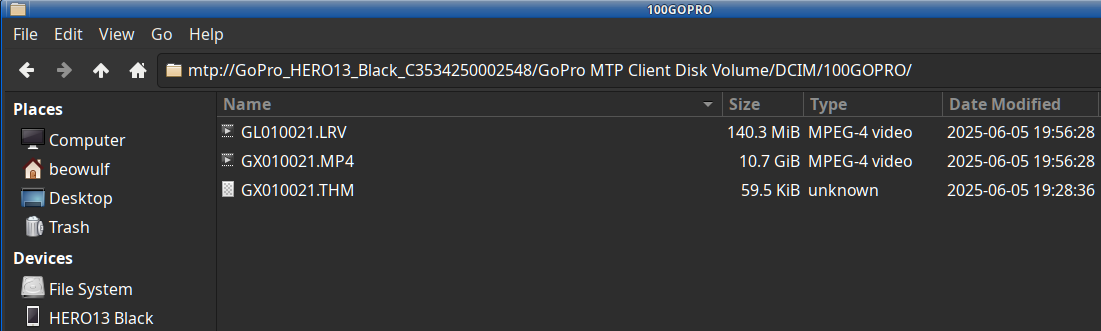
Each video is stored as 3 files: low resolution video (LRV), high resolution video (MP4), and a thumbnail image (THM). You can even update the firmware manually by uploading it directly to the sd card if you don't like to update OTA via the phone Quik app.
By the way, the official Quik app is now the only official way to access and use the camera. All Windows or MacOS programs are deprecated. Gopro decided that editing and streaming is only for mobile devices. Sure you can operate the camera from the app, stream to Twitch, etc, but you got to do so on your phone, and you better have a fast and solid WIFI connection.
Nuts...but this is not a review.
Fortunately, GoPro has released the entire API to access the camera features programmatically. Unfortunately, access is via a web API. You can find the full API specification as well as tutorials and software examples on the Open GoPro Github repository. There are numerous examples and how-tos on the internet, especially written in Python, but, as I will show you below, some are needlessly complicated, or haven't been updated for the Hero 13 and newer firmware.
For the sake of this "proof of concept" discussion, I'll skip access via BLE and WIFI and concentrate on the USB connection. It turns out that the USB-C port does support standard ethernet TCP/IP networking. Once you plug the USB-C cable in and turn on the camera, a new wired network device will appear. With Network Manager this is automatic; if you are running Slackware without Network Manager, then simply restart the network:
 1# /etc/rc.d/rc.inet1 restart
 2Stopping the network interfaces...
 3Starting the network interfaces...
 4eth0: polling for DHCP server
 5dhcpcd-9.5.2 starting
 6DUID 00:04:03:c0:02:18:04:4d:05:03:e3:06:b2:07:00:08:00:09
 7eth0: waiting for carrier
 8eth0: carrier acquired
 9eth0: IAID 4d:03:e3:b2
10eth0: adding address fe80::6cdf:843e:d95b:905c
11eth0: soliciting a DHCP lease
12eth0: soliciting an IPv6 router
13eth0: offered 192.168.1.3 from 192.168.1.1
14eth0: probing address 192.168.1.3/24
15eth0: Router Advertisement from fe80::c641:1eff:fe33:cc23
16eth0: soliciting a DHCPv6 lease
17eth0: DHCPv6 REPLY: No Addresses Available
18eth0: DHCPv6 REPLY: No Addresses Available
19eth0: DHCPv6 REPLY: No Addresses Available
20eth0: leased 192.168.1.3 for infinity
21eth0: adding route to 192.168.1.0/24
22eth0: adding default route via 192.168.1.1
23forked to background, child pid 662
24eth1: polling for DHCP server
25dhcpcd-9.5.2 starting
26DUID 00:04:03:c0:02:18:04:4d:05:03:e3:06:b2:07:00:08:00:09
27eth1: waiting for carrier
28eth1: carrier acquired
29eth1: IAID 47:3c:c2:c4
30eth1: soliciting a DHCP lease
31eth1: offered 172.25.148.54 from 172.25.148.51
32eth1: probing address 172.25.148.54/24
33eth1: leased 172.25.148.54 for 864000 seconds
34eth1: adding route to 172.25.148.0/24
35forked to background, child pid 803
In this example, we have a new device (eth1) and IP address. The camera runs its own DHCP server so that your computer is now 172.2X.1YZ.54 and the camera IP is fixed at 172.2X.1YZ.51. Each camera has a unique IP address. The values XYZ are the last three digits of the camera's serial number. In my case, I will send and receive data from address
http://172.25.148.54:8080
Nice. Now it gets complicated.
Now that we have access, we can start controlling the camera. Following the examples, we can send and receive camera information via an HTTP or curl GET request. For example, to get the camera information via the CLI with curl:
 1$ curl --request GET  --url http://172.25.148.51:8080/gopro/camera/info
 2
 3{
 4    "model_number": "65",
 5    "model_name": "HERO13 Black",
 6    "firmware_version": "H24.01.02.02.00",
 7    "serial_number": "C3534250002548",
 8    "ap_mac_addr": "0657473cc2c5",
 9    "ap_ssid": "Diablo00"
10}
All the camera settings and function can be accessed in this way, including some settings not exposed to the camera settings UI.
So how do we extract a video stream over USB ethernet to use the camera as a webcam? This can get a bit tricky, if you want to use the GoPro camera in most webcam apps, since the software will be expecting the video over V4L2 and /dev/video0 (for example, a standard USB webcam). At this point, the camera behaves like a standard IP camera. To get the video routed to regular webcam apps, you will need to set up a V4L2 loopback device to simulate a USB webcam.
I'll leave that as an exercise for the reader. We will use the IP video stream directly.
Via the web API, we can send the GoPro camera video directly to applications such as OBS Studio, VLC, etc, or process the video directly with ffmpeg.
NOTE: You may need to install a few extra video codecs if these are not automatically included in your Linux distro. For example, you will need at least the codecs for H.264 and aac since this is the video format that the camera transmits.
In my case, I've added aac, x264, x265 and recompiled ffmpeg, VLC, and OBS.
Remember that I mentioned a few "odd limitations"? Streaming video over USB, and setting webcam mode limits the video to 1920x1080 30 fps and h.264 and all the most settings are unavailable. Why? Go ask GoPro.
Enough preamble. It's time to whip the llama's ass!
Once you now the HTTP get commands to use, the next step is find the stream URL. There are 2 ways. You can start a preview stream. This is the same stream as the preview on the Quik app. This stream comes to use as UDP on port 8554 (default). We'll use ffplay, from ffmpeg, to test.
1$ curl --request GET --url http://172.25.148.51:8080/gopro/camera/stream/start[?port=xxxx]
2{}
3$ ffplay udp://172.25.148.51:8554
4...
5 Stream #0:0[0x1011]: Video: hevc (Main) ([36][0][0][0] / 0x0024), yuvj420p(pc, bt709), 1920x1080 [SAR 1:1 DAR 16:9], 29.97 fps, 29.97 tbr, 90k tbn, 29.97 tbc
6  Stream #0:1[0x1100]: Audio: aac (LC) ([15][0][0][0] / 0x000F), 48000 Hz, stereo, fltp, 191 kb/s
7...
8$ curl --request GET --url http://172.25.148.51:8080/gopro/camera/stream/stop
9{}
The webcam mode can also stream via RTSP, and this can be handy if you want to grab the stream with several programs. Here is a basic work flow to start webcam mode, start the stream, view, and exit webcam mode. Resolution is set to 1920x1080, Linear aspect ratio, protocol RTSP and port 554:
1$ curl --request GET --url http://172.25.148.51:8080/gopro/webcam/start?res=12&fov=4&port=554&protocol=RTSP
2$ ffplay rtsp://172.25.148.51:554/live
3...
4$ curl --request GET --url http://172.25.148.51:8080/gopro/webcam/exit
Here is a simple bash script that puts all these concepts together.
 1#!/bin/bash
 2
 3# configure GoPro for USB network access as webcam
 4# Assume network manager is running to assign USB network interface
 5# For DHCP on Slackware without nm run '/etc/rc.d/rc.inet1 restart as root user
 6
 7# IP based on GoPro serial number and internal DHCP.
 8# (see API specification https://gopro.github.io/OpenGoPro/
 9
10# The socket address for USB connections is 172.2X.1YZ.51:8080
11# where XYZ are the last three digits of the camera's serial number
12# USB interface will be 172.25.148.54 and GoPro is x.x.x.51"
13
14# TO-DO: parse network information to determine IP address
15# TO-DO: select file path?
16
17GOIP="172.25.148.51"
18PORT="8080"
19
20# base command
21CURLCMD="curl --request GET --url http://${GOIP}:${PORT}/gopro/webcam"
22CURLUDP="curl --request GET --url http://${GOIP}:${PORT}/gopro/camera/stream"
23
24# Webcam commands
25#  res=12 : 1080
26#  fov=4  : linear
27#  port=554 : stream port
28#  protocol=RTSP : stream
29#
30# for UDP the default port is 8554
31
32WCSTART="start?res=12&fov=4&port=554&protocol=RTSP"
33
34case $1 in
35    preview)
36        echo "Entering webcam preview:"
37        ${CURLCMD}/preview
38        echo "Starting 1280x720 preview..."
39        exec ffplay udp://${GOIP}:8554 > /dev/null 2>&1 &
40        sleep 8
41    ;;
42    stream)
43        echo "Starting stream: rtsp://${GOIP}:554/live"
44        echo ${CURLCMD}/${WCSTART}
45        ${CURLCMD}/${WCSTART}
46    ;;
47    record)
48        stmp=$(date +"%m-%d-%Y_%H%M" )
49        echo "** Saving copy of video stream to 'gopro-${stmp}.mkv' (press 'q' to stop)."
50# Audio skipped since OBS will record an external microphone
51		if [ "$2" = "UDP" ]; then
52			ffmpeg -hide_banner -y -i udp://${GOIP}:8554 -c:v copy -an gopro-${stmp}.mkv
53		else
54			ffmpeg -hide_banner -y -rtsp_transport tcp -i rtsp://${GOIP}:554/live -c:v copy -an gopro-${stmp}.mkv
55		fi
56    ;;
57    stop)
58	echo "Stopping stream:"
59        ${CURLCMD}/stop
60    ;;
61    exit)
62        echo "Exit webcam mode:"
63        ${CURLCMD}/exit
64    ;;
65    ustart)
66    	echo "Starting 1920x1080 stream on udp://${GOIP}:8554 "
67    	${CURLUDP}/start
68    ;;
69    ustop)
70    	echo "Stopping upd stream"
71    	${CURLUDP}/stop
72    ;;
73    *)
74        echo "usage: ${0} preview|stream|record [RTSP|UDP]|stop|exit|ustart|ustop"
75        echo "preview = puts GoPro into webcam preview mode"
76        echo "stream = starts RTSP webcam stream"
77        echo "record = records raw RTSP (default) or UDP webcam stream"
78        echo "stop = end webcam stream"
79        echo "exit = exit webcam mode"
80        echo "ustart = starts UDP preview stream"
81        echo "ustop = stops UDP preview stream"
82     ;;
83esac
To use OBS, we first start webcam mode. We'll use RTSP for this example, but UDP works as well. If you are going to stream to Twitch, webcam mode is already H.264.
1$ curl --request GET --url "http://172.25.148.51:8080/gopro/webcam/start?res=12&fov=4&port=554&protocol=RTSP"
2{
3	"status": 2,
4	"error": 0
5}
We'll now need to set up OBS to to look at "rtsp://172.25.148.51:554/live". Add the Gopro Media Source to your scene and set the parameters:
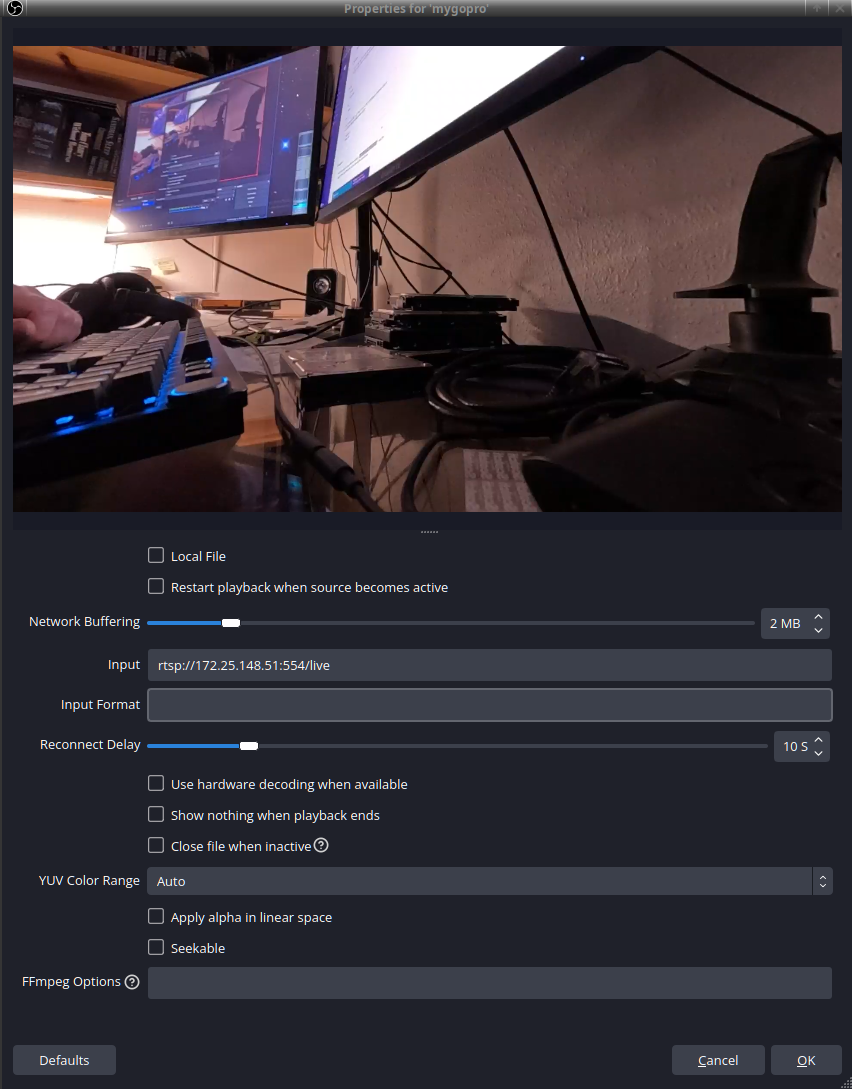
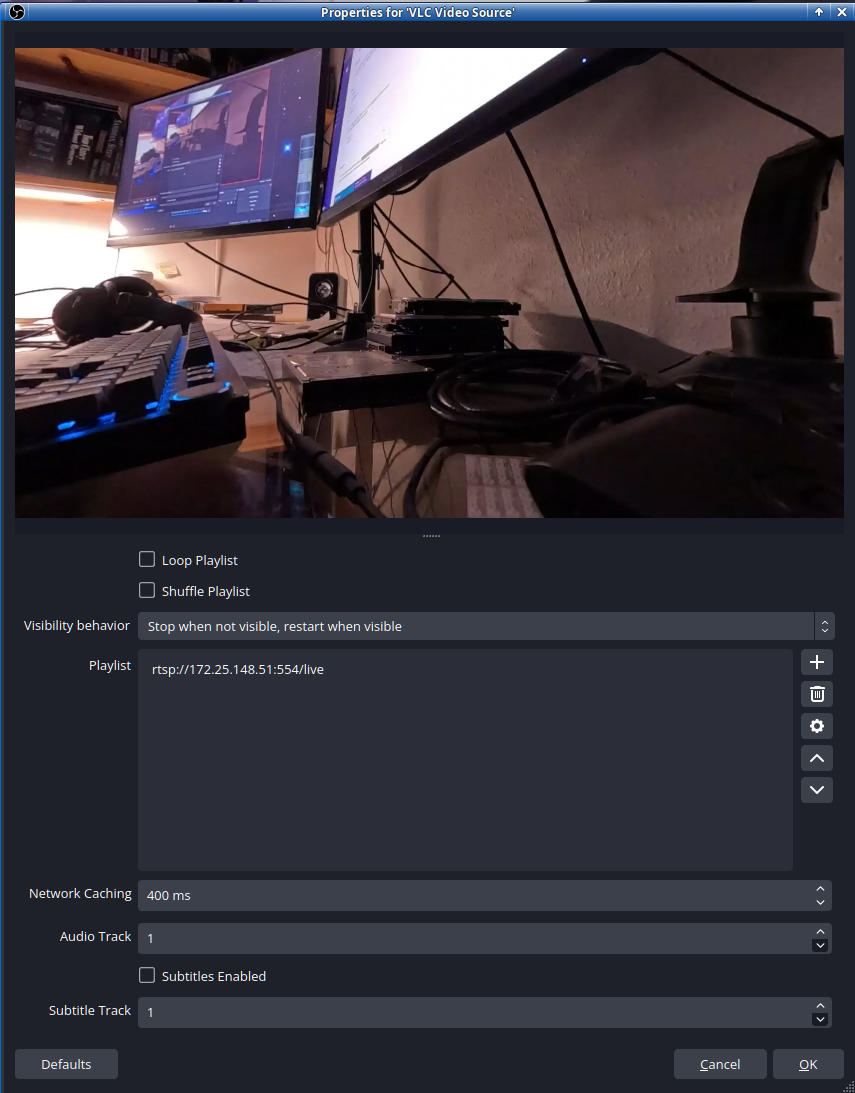
If for some reason, the Media Source option is cranky, and you have VLC installed, you can instead create a new VLC Media Source:
Complete the OBS configuration as you require for your streaming pleasure. Webcam mode, if I am not mistaken, has a bitrate of ~2500-3000 Kbps, so keep this in mind when setting up your encoding parameters. If you set OBS to record the stream, be careful with the settings and the capabilities of your computer. Running both streaming and recording processes can overwhelm older CPUs and GPUs.
Although the HTTP API to control the GoPro camera seems a bit convoluted and overly complex to me, it does work well enough to operate the camera as a webcam. I guess this old timer is just not hip to all this web API nonsense. I just wish they would allow
- Higher resolutions, fps, and bitrates in webcam mode.
- Allow access to all the fancy image settings in webcam mode.
- Easier, direct access to WIFI without having to use BLE to enable it.
- Have both the USB and WIFI not use fixed IP addresses via the built-in DHCP server and use just a DHCP client. The camera should connect to your network as just another network device or computer.
Have fun!
Contact:
- kingbeowulf@linuxgalaxy.org
- mumble.linuxgalaxy.org:64738
- Libera.chat IRC
- ##slackware, #slackbuilds, #linuxgalaxy
Screamin' and a-streamin' !
- https://twitch.tv/kngbwlf
- https://www.youtube.com/@mylinuxgalaxy
Advertisement
Tired of Steam, Epic and other rip-off game "stores"? Check out Humble Bundle for your digital download needs! A portion of your hard-earned gaming cash goes to charity.
King Beowulf's Humble Bundle Referral CodeCitizen Science!

